Showing posts with label recovery. Show all posts
Showing posts with label recovery. Show all posts
Wednesday, September 7, 2016
How to install TWRP recovery of Moto E
How to install TWRP recovery of Moto E
How to install TWRP recovery of Moto E - I recently saw how to access the recovery in Moto E, and the truth is that although it is an important tool to perform several advanced tasks on our device, is not the same make that comes preinstalled with a more advanced use. Therefore we want to show how to install the recovery of TWRP Moto E, in order to take advantage of its best features when it comes to get their hands on our phone.
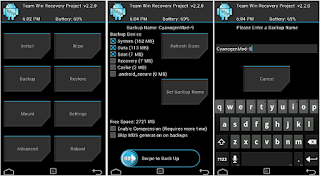
Is that TWRP is a recovery that with the passage of time is becoming standard, in part because of its functionality touch that actually became so popular that even led to the emergence versions of CWM recovery (formerly the most popular) with support for touch screens.
Here we will modify essential part of running our phone, so it is always advisable to make a Nandroid or a backup of critical data (videos, images, music) in order to have them available in case something goes wrong. We will also need the Android SDK, enable USB debugging (between development options) and last but very important to have a battery charging at least 60 percent.
Now if we can start:
- Download the file recovery of TWRP.
- We turn off the Moto E, waited a few seconds and turn on in fastboot mode (by pressing the keys on Volume- and on and holding them for about 6 or 7 seconds).
- We connect the phone to our PC via the USB cable.
- We go to the folder where you have the Android SDK and open a terminal window (command prompt in Windows).
- We write (without the quotes, of course) "fastboot flash recovery.img".
- On the phone, which is in fastboot mode, we pressed to move and select Volume-recovery (by pressing Power).
- Moto E enters recovery mode, although for the first minute or two still will not have the functionality available touch, so be patient.
- Select the option reboot system now and thats it; next time we enter the recovery we will at TWRP.
Available link for download

Sunday, August 28, 2016
How to Install ClockworkMod Recovery CWM on Sony Xperia P ICS and JB
How to Install ClockworkMod Recovery CWM on Sony Xperia P ICS and JB
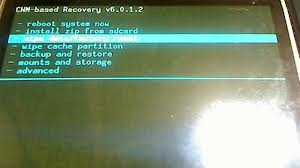
What is CWM? For taking Nandroid Backups, flashing zip files, if you caught in bootloops due to something wrong flashed WITHOUT backup of your important data, you can go for backup in TAR format from CWM Recovery and later on, extract the tar data and put in Titanium Backup to get it back... (YOU CANT USE WHOLE BACKUP THAT HAVE BEEN TAKEN AFTER BOOTLOOPS)
Thanks to atis112 for the Recovery.
Disclaimer : I am not responsible if you brick your phone or if u make any other damage to your phone
Note : This works on both locked and unlocked bootloader devices!!!
REQUIREMENTS :-
1. Stock ICS / JellyBean ROM
2. Root (Instructions to Root Jelly Bean Click Here)
INSTRUCTIONS :-
1. Download this zip package - CWM Recovery 6.0.1.2
2. Extract the zip file.
3. Enable USB debugging from Settings > Developer Options.
4. Enable Unknown sources from Settings > Security
5. Connect your phone to your Computer.
6. Click on install.bat and follow the onscreen instructions.
HOW TO USE :-
1. Power Off your Phone.
2. Power On your Phone.
3. Press the Volume Down Button when you see the Sony Logo ( Tap the Volume Down 2-3 Times )
Source - LINK
Available link for download
Thursday, August 25, 2016
All Android Phones Internal and with phone external Memory Data Recovery Tool
All Android Phones Internal and with phone external Memory Data Recovery Tool

All-Android Phones Internal and with phone external Memory Data Recovery updateTool
download from here registered software
https://www.mediafire.com/?jp7yh4k87ag4t8f
Available link for download
Wednesday, August 24, 2016
How to install TWRP recovery of the Moto G
How to install TWRP recovery of the Moto G
How to install TWRP recovery of the Moto G - Just recently saw the launch of Android 4.4.2 KitKat for the Moto G, an official update is available OTA (Over the Air) and can be installed in the American variant of this model, but for those with the European variant or international, will have to wait a few more weeks as the update is coming. However, it is possible to enjoy the upgrade through a manual process, ie by installing the ROM.

That if, as you know those who follow these pages, to install any ROM from recovery and we do so we must get unlock the bootloader, a step that we saw a few days ago. Lets see how to install the recovery of TWRP in the Moto G, so be ready to install a custom ROM with which we can enjoy several improvements that developers added.
The first step is to download the file containing the recovery, which we do from this link, or from this one. We keep it in a folder on our PC, making sure your name is recovery.img (without the quotes, of course). Now, we open a terminal window or system (Windows) and we have to run the following command, assuming fastboot tools which have already been installed to unlock the bootloader- are in the system path.
fastboot flash recovery recovery.img
The process is very fast, it does not take more than about 30 seconds at most, and at the end we will have installed TWRP recovery of the Moto G, which has gained much popularity in recent years thanks to being tactile buttons and thus big enough streamline the use of this part so important in using ROMs, kernels, Nandroids and formatting partitions.
Available link for download
Thursday, August 18, 2016
DOWNLOAD TWRP CUSTOM RECOVERY FOR TECNO J8 BOOM
DOWNLOAD TWRP CUSTOM RECOVERY FOR TECNO J8 BOOM

Download TWRP for Tecno Boom J8 here
How to flash TWRP to Tecno Boom J8
* Root the Tecno Boom J8 using root tecno j8
* Unzip the recovery.img from the above zip file after downloading and save it to the phones SD card
* Flash the recovery.img using rashr.apk download it here
Credit Goto Team Hovatek has ported TWRP to Tecno Boom J8
Available link for download
How to Install ClockworkMod Recovery CWM on Sony Xperia Go ICS and JB
How to Install ClockworkMod Recovery CWM on Sony Xperia Go ICS and JB

What is CWM? For taking Nandroid Backups, flashing zip files, if you are caught in bootloops due to something wrong flashed WITHOUT backup of your important data, you can go for backup in TAR format from CWM Recovery and later on, extract the tar data and put in Titanium Backup to get it back... (YOU CANT USE WHOLE BACKUP THAT HAVE BEEN TAKEN AFTER BOOTLOOPS) and for many more things :P you can search on google to know more about CWM ;)
Thanks to atis112 for the Recovery.
This recovery is only for Xperia Go (ST27i/ST27) do not try it on any other phone. This works on Ice Cream Sandwich 4.0.4 as well as on Jelly Bean 4.1.2.
Disclaimer : I am not responsible if you brick your phone or if u make any other damage to your phone
Note : This works on both locked and unlocked bootloader devices!!!
REQUIREMENTS :-
1. Stock ICS / JellyBean ROM
2. Root (Instructions to Root Jelly Bean Click Here)
INSTRUCTIONS :-
1. Download this zip package - CWM Recovery 6.0.1.2
2. Extract the zip file.
3. Enable USB debugging from Settings > Developer Options.
4. Enable Unknown sources from Settings > Security
5. Connect your phone to your Computer.
6. Click on install.bat and follow the onscreen instructions.
HOW TO USE :-
1. Power Off your Phone.
2. Power On your Phone.
3. Press the Volume Down Button when you see the Sony Logo ( Tap the Volume Down 2-3 Times )
Source - LINK
Available link for download
Sunday, August 14, 2016
Keep Your Mac Safe With Undercover The Mac Recovery System
Keep Your Mac Safe With Undercover The Mac Recovery System

LOCATE YOUR STOLEN MAC
The FBI just put out a study saying that 97% of stolen computers are never recovered.Don’t be a statistic – protect yourself with this theft recovery app for Mac.
With Undercover installed, you can find your stolen mac with wireless location tracking, get pictures of the thief from your webcam, see screenshots of what’s happening on your computer and see what the thief is typing.
WHY YOU’LL LOVE IT
If you’re anything like us, your Mac is VERY important to you. With its smooth user experience and great customer support/follow-up, Undercover makes it easy to keep your Mac safe.The folks at Undercover work together with police to get your Mac back, fast.
TOP FEATURES
- Effortlessly collect information about the thief (photos, location, screen activity and typing)
- Undercover collaborates with the police
- Auto-activation is possible when your Mac leaves your network
WHAT YOU’LL NEED
- Mac OS X 10.6.8 or higher
- This app is only available in English
THE PROOF
“Undercover works like a charm. It recently found my MacBook Pro and I had it back within 5 hours of handing the report to the police. At the same time iCloud’s find my Mac didn’t even activate…” – Drew B.“We want to report the successful recovery of our son’s stolen computer. The police were very impressed with the information given to them from Undercover, and they were not only able to recover our son’s computer, but several other stolen computers at the same time!” – Christy
“This morning my laptop got stolen along with my iPad. After I gathered all the evidence, the whereabouts and pictures of the thief, I immediately informed the police. It was recovered within 6 hours!” – Paul W.
SOFTWARE LICENSE DETAILS
- How many computers can you activate software with? – 1
- When does license need to be redeemed by? – December 31, 2014
- Does it include updates? – Minor updates are included, major updates might be paid
Available link for download
Subscribe to:
Posts (Atom)