Showing posts with label restore. Show all posts
Showing posts with label restore. Show all posts
Sunday, September 4, 2016
Semi Restore For iOS 5 0 to 7 1 2 Restore your iphone with out losing Jailbreak
Semi Restore For iOS 5 0 to 7 1 2 Restore your iphone with out losing Jailbreak

Semi-Restore
For iOS 5.0-7.1.2

Windows Download
Compatible with all jailbroken iPhone, iPod touch, iPad and iPad mini models running iOS 5.0 through 7.0.6
Requirements
* 5-10 minutes of your time!
* A computer running Windows or Mac OS X
Important! Read this or you may regret it!
* SemiRestore supports Windows XP SP3 or higher, OS X 10.6 or higher, and Ubuntu 12.10 or higher (or the equivalent Linux).
* There may be a better way to fix your current problem. For example, to fix "Safe Mode" issues, you can just uninstall Mobile Substrate from Cydia.
* Like any other restore, make sure you backup your data if you want it later.
* Avoid using your iOS device or anything related to iTunes or XCode during the Semi-Restore. Why not actually go outside?
* This process can not and does not repair broken system files! Avoid all Siri Ports, as they are not only illegal (except for Spire on 5.0.1) but they also
create problems and may potentially break system files (even Spire can cause this).
* Your device will respring or reboot several times during the Semi-Restore. This is perfectly normal, so dont panic.
Available link for download

Wednesday, August 31, 2016
How to restore the Moto X to its factory state
How to restore the Moto X to its factory state
How to restore the Moto X to its factory state - Android users we tested several custom ROMs tend to be exposed to a very serious problem that can leave us with a nice paperweight, and is the bricking your smartphone or tablet. Something that can happen accidentally if any problems occur, such as the end of the battery during the process of installing a ROM (why always recommend start with at least 60 percent of battery charge).
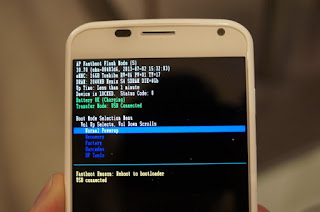
If by some misfortune our Moto X does not start or is in boot loop, then the first thing we have to do is calm down to not start to try anything or worse, several at a time, and evaluate the correct procedures to follow to recover steps. The first thing that can help us and get us out of this trouble is to do a factory reset, a process that gives us our device to its factory state.
The first step towards this is to enter the recovery mode of the Moto X, which perform as follows:
- We turn off the Moto X.
- After a few seconds, we turn on, pressing the switch, volume- and starting and keeping pressed for about 3 or 4 seconds. Then let go.
- We will see the boot menu of Moto X, where we can move down to the volume-key and then select an option by pressing the volume +. We headed to the option and select recovery.
- We will see a logo of an injured android, and now we press keys and volume-volume + simultaneously for about 5 seconds, then pressed the button.
Now we enter the recovery mode we need to go to the option to wipe data factory reset and select it, and then do the same to wipe cache partition.
Finally, select reboot system now, and at the end we will have restarted our Moto X to its factory state.
Available link for download
Monday, August 29, 2016
How to Backup – Restore Call Log and SMS from Android to Gmail
How to Backup – Restore Call Log and SMS from Android to Gmail
Backing up Phone data time to time is a good practice. With Android, it is possible to keep your Contacts synced with Gmail all the time. Apart from contacts, Android also syncs your app list. So, this feature helps you to get back the apps and contacts when you flash or factory reset your phone. Sadly, there is no in-built feature in Android to Sync your SMS, MMS or call log to and from Gmail.
So how do you benefit by syncing SMS and call log to Gmail? This might be a question in your mind if you are already using SMS apps like Go SMS, Handsent SMS etc. To backup SMS. Well, by sync feature you can get all your SMS and Call Logs directly on the fresh device. There is no need to worry about downloading additional SMS apps and searching for the back up file on your SD card.
You Can Use Titanium Backup
It will be much more convenient to have things backed up with Google. So lets see how to achieve this feature on your Android Phone.
How to Backup/ Restore Call Log, SMS and MMS to Gmail
What you will need:
To start with this tutorial, first you will need an Internet connection, an Android Phone running on Gingerbread and above. Last thing will be a small free app- Backup message & call to Email from Google Play.
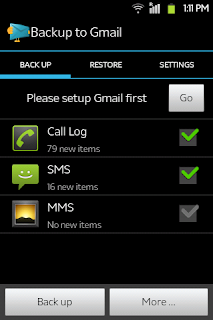
Configuring Backup message & call to Email
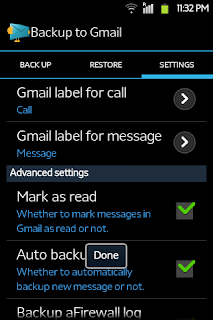
As I have mentioned earlier, it is very easy to configure. In the mandatory section, you will just need to login with your Gmail ID. Then you can select the services to backup. Best practice will be to keep the auto sync feature on. It might increase your data usage a bit but you can forget about manual backups.
Available link for download
Subscribe to:
Posts (Atom)