Showing posts with label factory. Show all posts
Showing posts with label factory. Show all posts
Tuesday, September 6, 2016
Octoplus JTAG PRO Software v 1 1 4 LG Factory Repair feature has been released!
Octoplus JTAG PRO Software v 1 1 4 LG Factory Repair feature has been released!
Octoplus JTAG PRO Software v.1.1.4 is out!
LG Factory Repair feature has been released!
Octoplus Box JTAG PRO Software v.1.1.4 Release Notes:
?? Added LG Factory Repair feature!
....You can try to repair LG devices via eMMC by using original LG firmware * («*.tot", "*.kdz" and "*.dz" versions of firmware are supported!).
....This feature can be useful in case, if you haven’t got the working device to prepare Repair file or haven’t got a chance to read out Full flash; or device you want to repair currently is not supported.
?? Fixed and improved Content Extractor.
....- Fixed GUI delay while analyzing contacts, SMS and pictures.
....- Fixed issue with contacts’ export to VCF file.
....- Increased stability of FS analysis.
....- Increased speed of FS reading and parsing directly from the device.
?? Added Win XP SP3 support (in test mode).
?? Made some GUI changes.
?? Updated repair file for LG LS991 (please re-download SRF file).
?? All pinouts and repair procedures described in the manual ("Help" button in the Software)
* NOTE: not all versions of firmware contain necessary partitions for repairing! Try to write different firmware.Download Octoplus JTAG PRO Software v.1.1.4

Find out more at: www.octoplusbox.com
Available link for download

Wednesday, August 31, 2016
How to restore the Moto X to its factory state
How to restore the Moto X to its factory state
How to restore the Moto X to its factory state - Android users we tested several custom ROMs tend to be exposed to a very serious problem that can leave us with a nice paperweight, and is the bricking your smartphone or tablet. Something that can happen accidentally if any problems occur, such as the end of the battery during the process of installing a ROM (why always recommend start with at least 60 percent of battery charge).
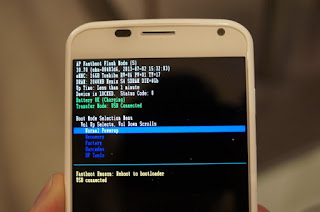
If by some misfortune our Moto X does not start or is in boot loop, then the first thing we have to do is calm down to not start to try anything or worse, several at a time, and evaluate the correct procedures to follow to recover steps. The first thing that can help us and get us out of this trouble is to do a factory reset, a process that gives us our device to its factory state.
The first step towards this is to enter the recovery mode of the Moto X, which perform as follows:
- We turn off the Moto X.
- After a few seconds, we turn on, pressing the switch, volume- and starting and keeping pressed for about 3 or 4 seconds. Then let go.
- We will see the boot menu of Moto X, where we can move down to the volume-key and then select an option by pressing the volume +. We headed to the option and select recovery.
- We will see a logo of an injured android, and now we press keys and volume-volume + simultaneously for about 5 seconds, then pressed the button.
Now we enter the recovery mode we need to go to the option to wipe data factory reset and select it, and then do the same to wipe cache partition.
Finally, select reboot system now, and at the end we will have restarted our Moto X to its factory state.
Available link for download
Monday, August 29, 2016
VolcanoBox 1 3 9 MerapiTool Happy New Year !!Added SPD7715 NAND ADB Read Factory File
VolcanoBox 1 3 9 MerapiTool Happy New Year !!Added SPD7715 NAND ADB Read Factory File
VolcanoBox 1.3.9
Merapi Tool
Update
Merapi Tool
Update
- b Added SPD7715 Adb Read Factory file
- V Phone must be Power On
- V Phone must be Rooted
- V Power must be Enabled Usb Debugging
- V Nand Supported
V !! Happy New Year !!
- VV Beta Test Reports [BETA] VolcanoBox 1.3.9 MerapiTool !! V Added hot Things inside !! Check it out
V Want to Buy Pack1
GPGIndustriesV
V
V Important Notice !!
V
V This is V Update you have to Extract into MerapiTool V1.3.2 Folder !!
Make sure your ANTIVIRUS is Closed !! V
V WE DONT DELETE POST OF OUR USERS. WE ARE VV NOT GIVING FAKE UPDATES LIKE Mxxxxx TEAM. V WE ARE REAL.
V Download Area
V Index of ./VolcanoBox/Pack1 aka Merapi Tool/
V Follow Us on Twitter for always Update to Date:
https://twitter.com/GPGWorld
V VFollow us on Facebook
https://www.facebook.com/GPGINDUSTRIESWORLD
__________________
V Best Regards
V Faisal_Computer
V General Manager
V GPGIndustries
V Best Regards
V Faisal_Computer
V General Manager
V GPGIndustries
Available link for download
Tuesday, August 23, 2016
Samsung Factory Reset Protection FRP
Samsung Factory Reset Protection FRP
What Is Factory Reset Protection(FRP)
Android Factory Reset Protection (FRP) is a new feature to protect your device which has been added to several Samsung devices that are running Android OS 5.1 or higher.
This feature allows you to set up your device to prevent other people from using it if its been reset to factory settings without your permission. For example, if your device is lost, stolen, flashed, or wiped, only someone with your Google account or screen lock information can perform a factory data reset and use the device.
When a device is factory reset, the device will not be able to be setup without the user entering the Google Account associated with the device (for hard reset) or screen lock information (for reset in Settings menu).
How To Protect Your Device?
If you reset your device to factory settings with the Factory Reset Protection (FRP) feature turned on, you must enter the user name and password for the last registered Google Account to regain access to the device. You will not be able to access the device without the correct credentials. This Google account verification prevents unauthorized users from accessing or using your device if it has been reset to factory settings without your permission (for example, if your device is lost or stolen). You should remove your Google account before shipping your device to Samsung or any other service provider for service and before resetting the device to factory settings.
How Do I Setup?
1)In Galaxy S5 Sport
*Tap the Settings icon.
*Scroll to the System section and tap Security.
*To enable Reactivation lock, scroll to and tap to check Reactivation lock.
*Review the Reactivation lock prompt and tap OK.
*Enter the Samsung Account password then tap CONFIRM.
*The Reactivation lock feature has been enabled.

*From the Home screen, touch Apps
*Touch Settings.
*Touch the PERSONAL tab.
*Touch Lock screen and security.
*Touch Find My Mobile.
*Touch the slider OFF to turn Reactivation lock ON.
*Review the information and touch OK.
*When resetting your device, you will be prompted to confirm your Samsung account password.
*Your device will reboot and reset.

How To Disable Reactivation Lock.
*Tap to uncheck Reactivation lock.
*Review the Turn off Reactivation lock prompt and tap OK.
*Enter the Samsung Account password, then tap CONFIRM.
*The Reactivation lock feature has been disabled

Source:Samsung.com
Available link for download
Subscribe to:
Posts (Atom)