Showing posts with label sms. Show all posts
Showing posts with label sms. Show all posts
Sunday, September 4, 2016
New SMS Notification Android App to Get Pop Up on Android Screen
New SMS Notification Android App to Get Pop Up on Android Screen
Getting instant access to incoming SMS without making a single touch is easy nowadays. There are many free SMS apps that replaces the default Android SMS and provides you with advanced features like SMS preview and Privacy. If you are already using apps like Go SMS, Handcent SMS etc. Then there is no need to look further. But if you still prefer using android stock SMS app, the only option you have is to have the new SMS scroll on the notification bar. This is bit inconvenient and you will have to get into messaging app to read the message properly.
To be true, personally I have never used SMS preview feature as it will be a big hindrance to your privacy. The situation turns awkward when your friends are having your phone and a private message pops up. If you do not care about that privacy you can go for SMS Notification Popup.
SMS Notification Popup is free and light weight app. You can easy configure and use it instantly after installation. Let’s see how this app works.
Working With SMS Notification Popup

Open the app and select your preferences. There are two themes: light and dark. The popup display can be further customized by position and the content to be displayed. You can select to have only contact, message or both to be displayed on popup. Most importantly, you can set the time for which the popup will be displayed.

One thing to keep in mind is that, you should disable Stock SMS notification if you are using popup notification. There is no problem if you don’t, you will only get double notification for a single SMS. To disable default SMS notification, open the messaging app and go to settings. Un check the notifications option.With SMS Notification popup it becomes a blaze to read new messages for Android stock SMS app users. The only thing I felt like missing was the ability to read the message within SMS app after tapping on the popup. Tapping the popup does nothing. Well, that’s not a big issue and the feature might get added in future versions.
Available link for download

Monday, August 29, 2016
How to Backup – Restore Call Log and SMS from Android to Gmail
How to Backup – Restore Call Log and SMS from Android to Gmail
Backing up Phone data time to time is a good practice. With Android, it is possible to keep your Contacts synced with Gmail all the time. Apart from contacts, Android also syncs your app list. So, this feature helps you to get back the apps and contacts when you flash or factory reset your phone. Sadly, there is no in-built feature in Android to Sync your SMS, MMS or call log to and from Gmail.
So how do you benefit by syncing SMS and call log to Gmail? This might be a question in your mind if you are already using SMS apps like Go SMS, Handsent SMS etc. To backup SMS. Well, by sync feature you can get all your SMS and Call Logs directly on the fresh device. There is no need to worry about downloading additional SMS apps and searching for the back up file on your SD card.
You Can Use Titanium Backup
It will be much more convenient to have things backed up with Google. So lets see how to achieve this feature on your Android Phone.
How to Backup/ Restore Call Log, SMS and MMS to Gmail
What you will need:
To start with this tutorial, first you will need an Internet connection, an Android Phone running on Gingerbread and above. Last thing will be a small free app- Backup message & call to Email from Google Play.
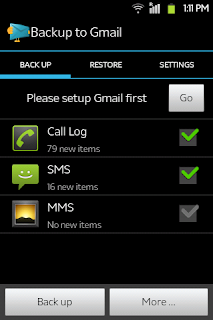
Configuring Backup message & call to Email
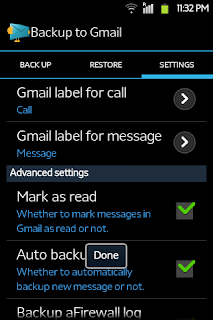
As I have mentioned earlier, it is very easy to configure. In the mandatory section, you will just need to login with your Gmail ID. Then you can select the services to backup. Best practice will be to keep the auto sync feature on. It might increase your data usage a bit but you can forget about manual backups.
Available link for download
Subscribe to:
Posts (Atom)