Showing posts with label device. Show all posts
Showing posts with label device. Show all posts
Tuesday, September 6, 2016
What is ROM and How to Choose Perfect ROM For My Android Device
What is ROM and How to Choose Perfect ROM For My Android Device

You’ve been with your no-longer-so-brand-new Android phone for a long time now. It has become slow, there are apps that are no longer compatible with your operating system version and widgets and do not convey any emotion.
If your phone was a PC, you would have formatted and installed latest operating system. Same thing goes with Android, where you have to install ROM on device.
What is an Android ROM? What about firmware?
Firmware and ROM are one and the same thing: Read-only memory on your phone, can be said to be Soul of your Phone. Contains the Google Android operating system, duly adapted and configured to work with the hardware-specific mobile phone (antenna, computer graphics, cameras, etc.).
The operating system is in a read-only memory for two reasons: to prevent overwriting files, and to keep you faithful to small changes and integrated applications that manufacturers often include in their models. Being open source, Android allows for all sorts of modifications. In addition to the official ROM, very common thing you find is ROM made ??by groups of volunteers and enthusiasts who take the code base and add or remove features or skins. Even you yourself can create (cook) yours.
So why should I change the ROM?
For the same reason you changed your phone, whatever. Some people need more performance, who want to upgrade the operating system to a later version without waiting for official update, and who wants to renew the look of your phone or just try new things.
Is it Dangerous? Can Anything go Wrong?
No. Generally nothing happens as long as we follow the steps given correctly. Chances are new ROM may wipe out user data so, take backup (Titanium Backup is recommended). Or it may happen that some of your apps aren’t compatible with new ROM so, there are always alternatives to choose from million in Android Market.
Bricking of Phone (Phone actually becomes no more than a brick) is an extreme case which results out of carelessness and improper following of instructions.
How to flash a ROM?

Step 1. Install ROM Manager
Your Phone needs to be rooted, the next step is to install ROM Manager, a great app that lets you download and flash new ROM and change the recovery (recovery mode of mobile) with ClockworkMod, from which it is possible to perform full backups and delete the phone memory, among many other things.
Step 2. Install the recovery ClockworkMod
To install ClockWorkMod Recovery, Press the menu option in the ROM Manager. After downloading the image with the latest version of recovery, the app will ask you to restart the phone in recovery mode. From Recovery Mode, you can get back to normal mode with Reboot option.
Step 3. Flash ROM
ROM Manager has another important feature of installing ROM from SD Card. You generally have to download Custom ROM provided by developer and insert that ZIP file into root directory of SD card and then flash it.
How to Choose Perfect Android ROM
There is nothing like Perfect ROM but still, choosing a ROM for your Android phone is not a simple matter. Before flashing a note the following:
- Compatibility with your device (model, manufacturer and country)
- Presence of your favorite apps (HTC Sense, Google apps, etc.).
- If you need external partition (A2SD) or installed into the memory
- User Comments and Review about them
.
Some popular ROMs available are:
- CyanogenMod, the best known and with support for most brands
- MIUI, a spectacular ROM for Samsung, LG, Motorla and HTC
- LeeDroid , HTC mobile for fans of HTC Sense
There are many more, some more stable than others. All bring something, but the choice is up to you. You can always browse XDA Forums to find the one for yourself.
Available link for download

Sunday, September 4, 2016
Flashtool For Flashing All Xperia™ devices Free Xperia™ device Flashing
Flashtool For Flashing All Xperia™ devices Free Xperia™ device Flashing

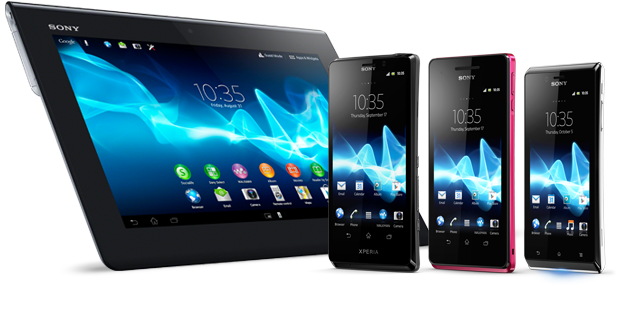
Sony Mobile has introduced most amazing devices with Android OS. So you are here to get your Xperia Smartphone flashed and here is the flashtool for flashing all Xperia™ devices. So if you are not satisfied with the existing firmware of your smart phone or you want to upgrade to a better firmware on your smart phone so you are have right to go on and here you can find the flashtool for flashing all Xperia devices.
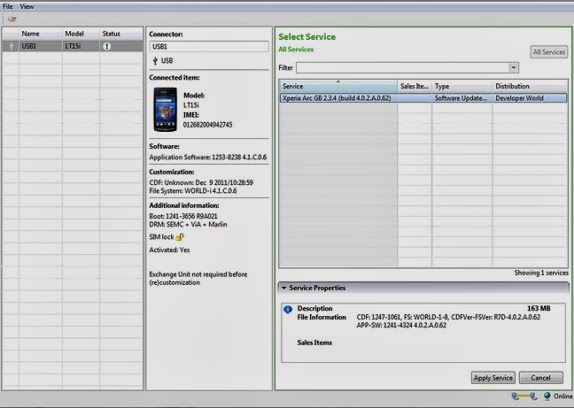
How to Download and Install Flashtool For Flashing All Xperia™ devices
- 1-)Download the Flashtool For Flashing All Xperia™ devices.
- 2-)Unzip the file you downloaded and place it somewhere on your computer.
- 3-)In the unzipped folder, run Emma.exe. During the installation, make sure you remember the installation path:
- 4-)Default path in Windows 64 bit is: “C:Program Files (x86)Sony MobileEmma”
- 5-)Default path in Windows 32 bit is: “C:Program FilesSony MobileEmma”
- 6-)Copy the Customization.ini file. You find it in the Flash_tool_for_Xperia_X.zip.
- 7-)Paste the Customization.ini file into the installation folder. The installation folder is the folder named Emma in the installation path examples on point 3.1 and 3.2 above.
- 8-)Click Start > All programs > Sony Mobile > Emma (if you used the default installation path from step 3 above) to start the flash tool.
Download Flashtool For Flashing All Xperia™ devices
Select appropriate version according to your operating system.
Windows Version of Flash Tool
Download1
Download2
Linux Version of Flash Tool
Download1
Download2
MAC Version of Flash Tool
Download1
Download2
Available link for download
Monday, August 22, 2016
How to eradicate almost any Android device in one click Guide
How to eradicate almost any Android device in one click Guide
How to eradicate almost any Android device in one click [Guide] - Framaroot is a one-click solution to the roots of your device. This application lets you easily root your device with one click. Rooting your device lets you take control of privilege and make changes to your Android phone. You will be able to download various special applications that are limited to devices rooted and installed ROM. A big advantage of this is that Framaroot root once your device, allowing you unroot again without problems.
![How to eradicate almost any Android device in one click [Guide]](https://blogger.googleusercontent.com/img/b/R29vZ2xl/AVvXsEjEc01qm426uGFtG5eYum6T1gzXJci6PRIx3-xxfwOGqEZ6Z9dc6mgPH0RciH327PlXUQf7rOFL6E14CJVZY6CxpVGaPoloaO-Jch0KC3MUYeZAuI90DcWb7i6U4kfQd4qRIOPUqOwOkRPG/s320/Framaroot.png "How to eradicate almost any Android device in one click [Guide]")
Disclaimer: This guide is intended as a useful "how." dotTech and writers are not responsible for any gain or loss (including, but not limited to bricked devices) incurred as a result of following this guide. Root your device at your own risk. Rooting may void the warranty. Proceed at your own risk.
Before starting
Be sure to take a backup of your phone before the process
Note that rooting your phone warranty will be void and there could be a risk of your phone getting brick.
Devices that can be rooted using this application are listed here. Make sure your device is listed.
Framaroot download APK (Go to the bottom of the first message, make sure you download the latest version.)
If the device is not supported by Framaroot, read how to eradicate guide dotTech learn to eradicate specific smartphone or tablet.
How to Root your Android device using APK Framaroot
Step 1: Download Framaroot APK to your computer from the link above.
Step 2: Connect the device to PC and transfer Framaroot APK on your device.
Step 3: Disconnect the device. On your device go to Menu -> Settings -> Security and enable unknown sources. You may need to go to find Unknown Developer options, depending on the version of Android you have.
Step 4: Open a file manager, web browser and install APK Framaroot has previously transferred. Once installed, start it from the application drawer.
Step 5: In the dropdown menu, select Install SuperSU.
Step 6: Check that exploit corresponds to your phone model from the list here. Once youve found the exploit, select the exploit in the application.
Step 7: Once done, the rooting process will start. Once completed, restart the device and go.
CONCLUSION
Following the above steps, you will have your device rooted in minutes and youll be able to download special applications that require rooting and install ROM. Note that the roots of your device voids the warranty of your phone.
Available link for download
Thursday, August 18, 2016
Marshmallow Root your device without changing the system
Marshmallow Root your device without changing the system
Marshmallow Rootea your device without changing the system - To improve the security of Linux in general and Android in particular, a number of permissions that protect applications from accessing certain system resources unless we allow it.
However, there are certain system resources that can not access unless you have administrator permissions or superuser, rooting our device being necessary for this. Rooting modern versions of Android tends to be more complicated, and now know a new method for Marshmallow.
Root without modifying the system, a world of advantages
Chainfire is one of the most famous developers XDA Developers. Among his achievements, notable for being the creator of SuperSU, one of the management applications most widespread root permissions

In addition, each new version are usually the first to get to have rooteo. Today we know a new method for root Marshmallow Android 6.0 without modifying the partition / system. According to its creator, this method has great advantages that are detailed below:
- A cleaner and better application designed
- Easier to remove the root of our device.
- Do not modify the partition / system.
- Excludes some points that are unnecessary in root Marshmallow.
- OTA updates cause fewer headaches.
- It rooteo fail method not brickeará the device simply will not be rooted, but the system will continue running smoothly.
No doubt that this new method all advantages, especially the last two points, but we should remember that although this new method is much safer, in the end everyone is responsible for his own device, as it is in experimental phase . In contrast, not found in the system, if we restore the root factory disappear.
Finally, mention that we echo on Reddit as this type of root is not detected by Android Pay. Chainfire response to this is that "it is true, but not because it was designed to do." If you are interested in installing this new way of root, we recommend we recommend stopping by the XDA Developers thread.
Download super su here
Available link for download
Disable or Block Ads on Android Device using AdFree Android App
Disable or Block Ads on Android Device using AdFree Android App
Basically there are three types of application available on Android market. The best class is of the freeware apps that are free to use with out any restrictions. Many of them are paid, once you buy them its all yours and finally the adware applications that are free but display ads on the application interface to generate revenue for the developers. Although these ads are mend to support the developer but they cost you your bandwidth.
Thanks to BigTinCan developers, users of rooted devices can now remove Google ads from android applications and even your default web browser in some cases uses this free application.
AdFree Android is a nifty application which enables the user to remove on screen Google ads on their Android apps to cut down the bandwidth usage which is very crucial for users subscribed to data-based 3G plans.
Working With AdFree Android

Once your device is rooted its is a piece of cake to install and setup the application. Once the application is launched it will automatically search for the prerequisite host file and apply the fix. So, initial internet connection is required for this app to work.
Effects might not take place until you restart your device. However if you want to revert the settings you can do so by hitting the revert settings button.
Remove Google Ads Android [ Video ]
So go on and download the application by scanning the below QR code to set up your ad-free life.

Note: As developers work hard day and night developing application to make your digital life easy please don’t use the above fix unless you are running out of your data limit. Please support through developers for the further development of your favorite application.
Download: AdFree Android
Available link for download
Wednesday, August 17, 2016
REPAIR ALL FAILED BOOTING for BlackBerry Device
REPAIR ALL FAILED BOOTING for BlackBerry Device

REPAIR ALL FAILED BOOTING for BlackBerry Device
Fungsi tool ini diantaranya :
1. WIPE APP
2. WIPE SISTEM
3. NUKED ALL TIPE
4. DUAL WIPE
5. TRIPLE WIPE
6. ERASE BOOT NV FREEZE
7. WIPE NV FREEZE
8. NUKED NV FREEZE
9. INFO BLACKBERRY
10. REFRESHING SCREEN
DOWNLOAD HERE
Password : http://9kom.blogspot.com
Klik Thanks bila artikel ini bermanfaat untuk anda.
Never Too Late To Learn.
Wassalam.
Available link for download
Saturday, August 13, 2016
Download The Official Google Android 4 2 Keyboard For Almost Any Device
Download The Official Google Android 4 2 Keyboard For Almost Any Device
Those of you who are acquainted with Android 4.2 Jelly Bean are likely aware of the keyboard that it ships with. The stock keyboard is an intelligent offering to come out of the Android lab from Mountain View, and makes typing a whole lot easier on Google-branded Nexus devices, or any device that ships with stock Android. And starting today, you can now download that very same keyboard for any Android phone or tablet absolutely free of cost. More details and APK download link can be found right after the jump.
If you’re wondering from the very start regarding the developer of this keyboard, then yes, it’s Google itself. It’s not a port of the keyboard from Android 4.2, it’s the real deal, and Google has made it available to everyone who are on non-Nexus devices.

Aptly named Google Keyboard, it carries every single feature which we’ve come to love on Android 4.2’s keyboard. It features Gesture Typing, which is a brilliant Swype like implementation, in fact slightly better in some ways. Its intelligent word prediction engine and finger tracking makes the keyboard a marvel to use. The dynamic floating preview of words being typed is a feature alone that’s enough to make you jump ship.
Remember we said that it features everything from Android 4.2? That’s right, it also features Google’s famed Voice Typing, which lets you type hands free using the power of your voice. Backed up by Google’s credible voice recognition services, you can rest assured that your device won’t mix up “this guy” with “the sky”, if you know what I mean.

Word prediction is also there, along with current-word completion for added ease while typing. Having tried different keyboards in the last few years on Android alone, I have to say that Google’s word prediction is far superior than what others have to offer. It’s really that good!
The keyboard, in its current form, supports up to 26 dictionaries and a bunch of keyboard layouts. We’re quite certain that with time the dictionary will be updated with support for more languages.

Supported for both phones and tablets running Android 4.0 Ice Cream Sandwich and above, and with a price tag of free, there’s no way that you shouldn’t give Google Keyboard a try. Simple tap on the Play Store download link below and dive into the stock keyboard experience!
(Download: Google Keyboard for Android on the Play Store)
Available link for download
Subscribe to:
Posts (Atom)